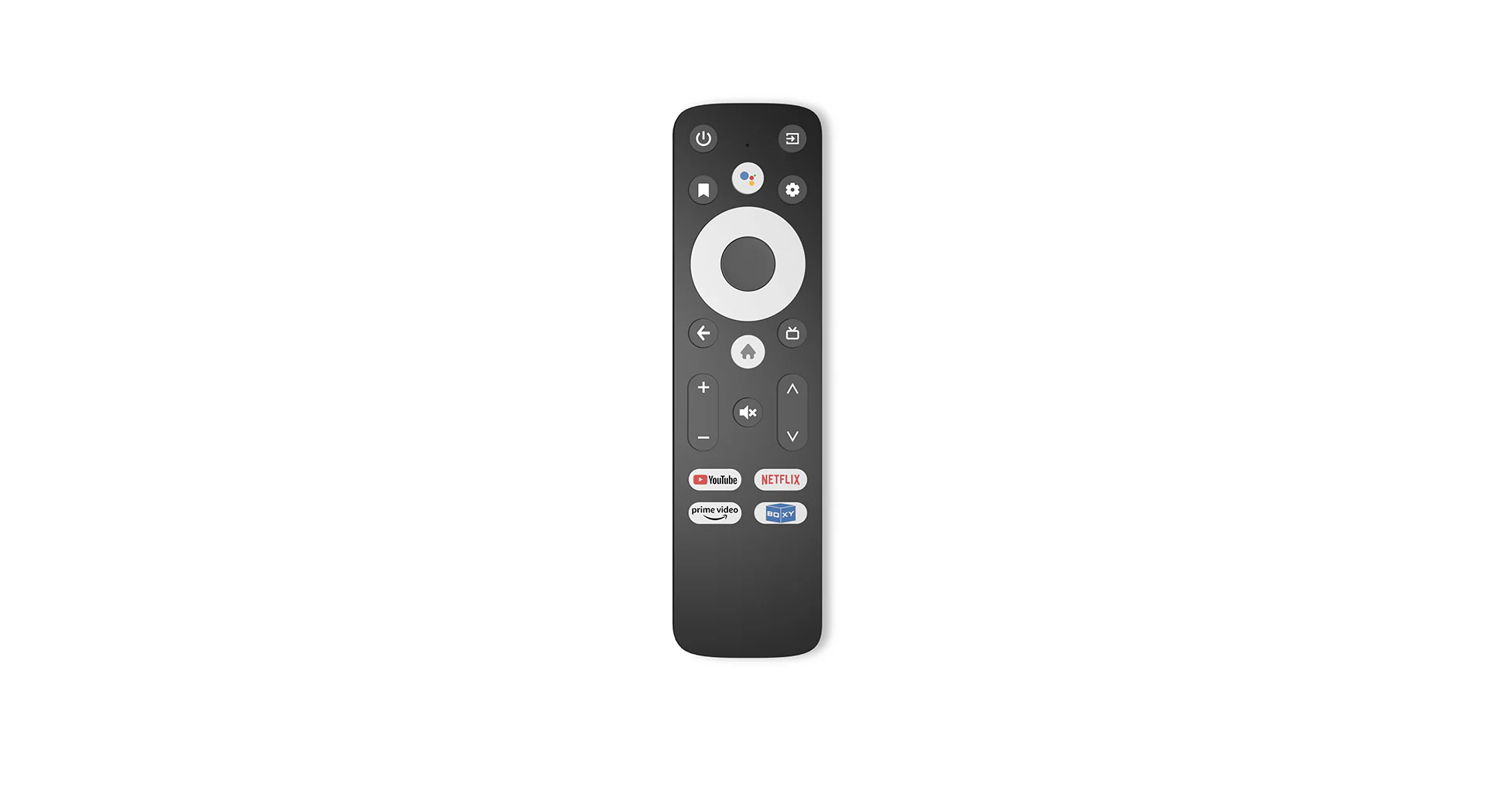
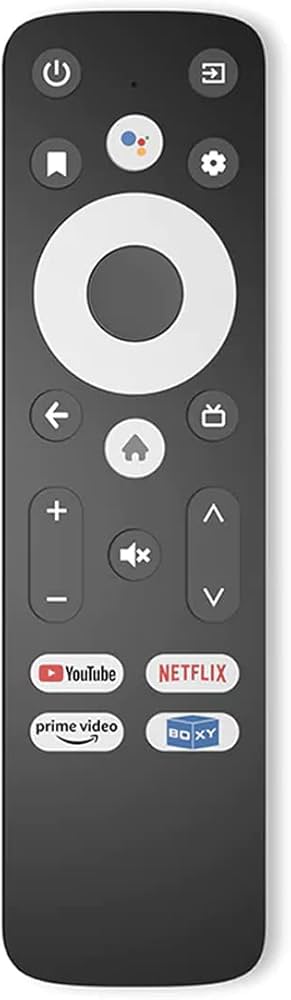
Main functions of buttons of the remote when using Dune HD Media Center:
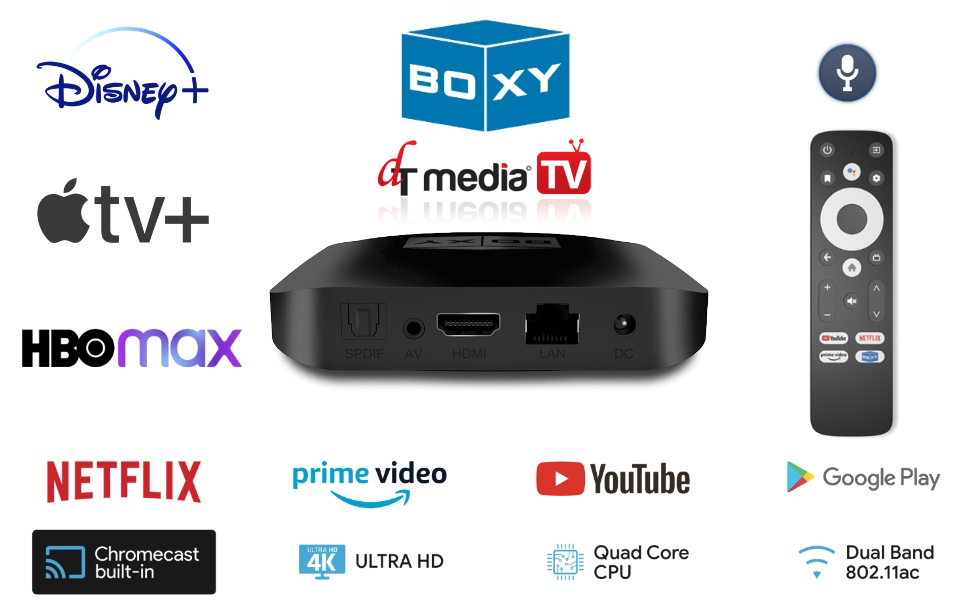
TOP TIP: Press the “BOXY” Button on the Remote to access dT Media TV!
UP, DOWN, LEFT, RIGHT buttons:
In menus: navigate through menus and menu items.
When playing a media file (this behavior can also be customized in Setup menu):
UP/DOWN: show playback control menu.
LEFT/RIGHT: show playback timeline.
When playing a TV channel (this behaviour can also be customized in Setup menu):
UP/DOWN: switch to next/previous TV channel.
LEFT/RIGHT: pause/resume playback (when supported), and also show playback time.
CENTER (also know as OK or ENTER) button:
In menus: choose/use/play the selected object.
When playing a media file: pause/resume playbak, and also show playback control menu.
When playing a TV channel: show TV menu.
BACK (also known as RETURN) button:
In menus: go back to the previous menu level.
During playback: stop playback.
Long-press CENTER (also known as OK or ENTER) button:
Does the same as “POP UP MENU” button on standard Dune remote.
Usually shows a POP UP MENU providing access to additional information and actions for the currently selected object, for the current screen, or for the currently played media.
Long-press BACK (also known as RETURN) button:
Does the same as “TOP MENU” button on standard Dune remote.
When a video or audio is not playing: quickly jump to the top level of the maun Dune menu.
When a video or audio is playing: show/hide the main Dune menu over the playback.
BOOKMARK button:
Does the same as “INFO” button on standard Dune remote.
Usually shows some information about currently selected object, the current screen, or the currently played media.
The same function is often available via POP UP MENU.